

How to Add Someone to a Group Photo with Google Gemini (Prompt)
Why This AI Photo Editing Trick Is Going Viral
AI photo editing is becoming extremely popular online. Today, tools like Google Gemini make complex edits much easier for everyday users. Because of this, many people are now adding missing friends or family members into group photos with AI.
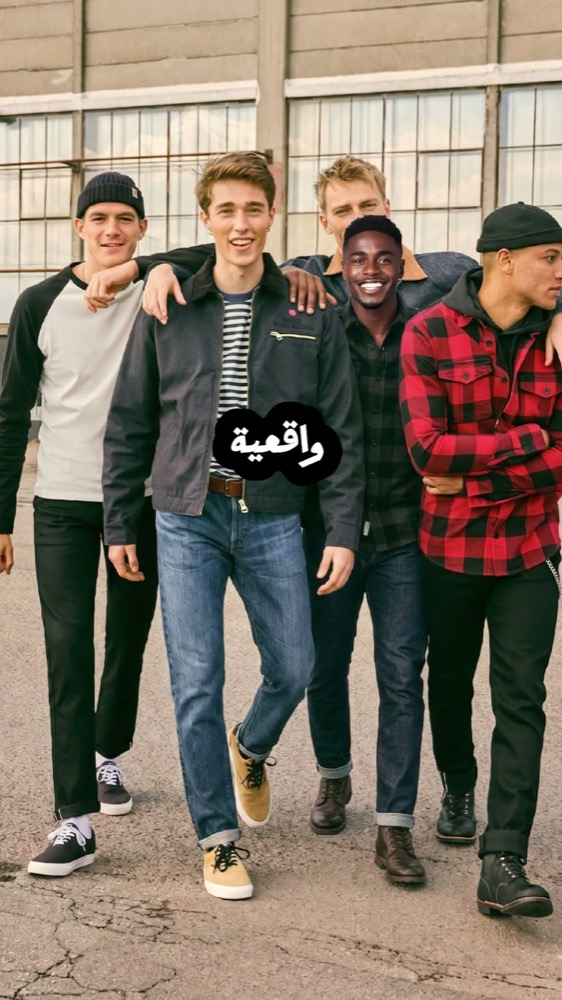
Unlike traditional editing methods, this process does not require Photoshop skills. All you need are two photos and a simple prompt. From there, Gemini handles the difficult editing automatically.
In most cases, the final image looks highly realistic. Lighting, shadows, colors, and camera angles are adjusted automatically by the AI. As a result, the added person blends naturally into the scene.
Across social media platforms like Instagram, TikTok, and YouTube, this trend continues to grow rapidly. Many creators use it for viral content, while families often use it to recreate memories or restore old photos.
I actually tried this myself with an old group photo from a trip a friend missed, using a separate solo photo of them taken around the same time, mainly to see whether Gemini could really match the outdoor lighting convincingly.
Tips for Better Results
Getting realistic results depends heavily on the quality of your images. These tips can help improve the final output significantly.
Use Clear Photos
Sharp and high-quality images work best for AI editing. Meanwhile, blurry or compressed photos often reduce realism.
Match the Lighting
Similar lighting conditions make blending much smoother. For instance, daytime outdoor photos usually work best together.
Use Similar Angles
Camera positioning also matters when creating realistic edits. Matching angles help the AI place the person naturally inside the group.
Try More Than Once
Different generations can produce slightly different outcomes. Therefore, creating multiple versions increases the chance of getting the perfect result.
Common Mistakes to Avoid
Even though the process is simple, certain mistakes can lower image quality dramatically.
Some common issues include:
- Dark photos
- Low-resolution screenshots
- Different lighting styles
- Incorrect scaling
- Weak prompts
For the best outcome, always use clean, bright, and high-quality images.
The lighting and shadow direction matched better than I expected on the first try, but the skin tone came out slightly warmer than the rest of the group until I picked a source photo taken in similar daylight — matching lighting conditions between the two photos mattered more to the final realism than anything in the prompt wording itself.
Step-by-Step Instructions
Step 1: Open Google Gemini
Begin by visiting Google Gemini and signing into your account. After logging in, open the “Create Image” section.
Step 2: Upload Your Photos
Inside the editor, upload two separate images:
- The original group photo
- The photo of the missing person
To improve realism, both photos should be sharp and well-lit.
Step 3: Enter the Prompt
After uploading the images, paste this prompt into the text box:
Add the shadow silhouette with the provided female image, match exact position, scale, and perspective. Adjust lighting to bright outdoor daylight, add realistic ground shadow, blend edges smoothly, match color grading, depth, and sharpness. Make it fully photorealistic and seamless with the group.
Step 4: Generate the Image
Once everything is ready, click the “Generate” button and allow Gemini to process the edit.
Step 5: Review the Result
Within seconds, the AI will create a realistic group photo with the missing person naturally added into the scene.
One honest limitation from testing this: it works best when the missing person’s photo is a similar distance from camera and similar pose to the people already in the group shot. A close-up portrait dropped into a wide group photo still needed a couple of regenerations before the scale looked natural.
Common problems and how to fix them
| Problem | Why it happens | Fix |
|---|---|---|
| The added person looks pasted on | Different light direction in the two photos | Pick a source photo where the light comes from the same side as the group photo |
| The person is the wrong size | Gemini has no reference for scale | Say where they should stand and who they stand next to, e.g. “between the two people on the left, same height as them” |
| Faces change slightly | The model re-draws faces it touches | Add “keep everyone’s faces exactly the same” to the prompt and regenerate if needed |
| Blurry or low-detail result | Low-resolution or heavily compressed source photos | Use the original photos, not screenshots from WhatsApp or social media |
Is it okay to edit people into photos?
For personal memories — adding a family member who missed the photo — it’s a fun and harmless use. Just be honest about it: don’t present an edited photo as a real event when it matters (news, documents, proof of attendance), and only edit people who are happy to be included.
FAQ
Is this free?
You can try it with a free Google account in Gemini. Free usage has daily limits, so heavy use may require a paid Google AI plan.
Can I add more than one person?
Yes, but results are most reliable when you add one person at a time and regenerate between each step.
Does it work on phone?
Yes. The Gemini app on Android and iPhone supports uploading two photos and using the same prompt.


